Why / when to use this
Reads the files and instructions you email, then creates draft bills, invoices, journals or related documents in Xero. For a normal supplier invoice or expense, just send the file — no instructions needed. Add a note when you want a tweak, or when the invoice is one you issued outside Xero and should be a sales invoice. Rental statements are usually recognised from the file and are always entered line by line.
How to do it
- Ordinary bill or receipt: attach the file and send. No wording required unless you want to customise it. A supplier’s invoice to you becomes a draft bill.
- Your own sales invoice (created outside Xero): if you raise sales invoices in Excel, Word, Numbers, Google Docs or another template — not inside Xero — and you want them entered into Xero, attach the PDF and say “create an invoice”. Otherwise it will make a bill, because it assumes the invoice is to you (most emailed invoices are from suppliers). If you already create sales invoices inside Xero, you do not need to send those through Smart Bookkeeping.
- Spreadsheet (XLS, XLSX or CSV): these are table spreadsheets. Your assistant automatically decides which columns to use for dates, amounts, descriptions and the rest. You can tell it which columns to use if you prefer. You can also save that as a rule so it remembers for next time.
- Each product on its own line: some receipts have many products (for example an IKEA shop for several properties). If you do not ask, your assistant creates one entry for the whole receipt. To file line by line, say so. You can also send named items to different tracking options or properties — but you must say where the other lines go too, or those will be left blank. For example: “Assign the Dyson hoover to Flat 1 and split everything else equally amongst the other flats.”
- Override this file only: you can force any part of the draft by saying so in the same email — account (by name or code; a short description is often enough), supplier/contact, amount, tracking, or a note such as “Note that this has been paid”. Changing the amount is useful when the invoice is in dollars and you paid in pounds.
- Rental statement: attach it. Rental statements are always processed multi-line — each rent, fee and expense on its own line, coded and tracked from the statement and your rules. You do not need to ask for line-by-line filing. By default she creates a draft invoice in Xero (that is why many of the example replies say “invoice”).
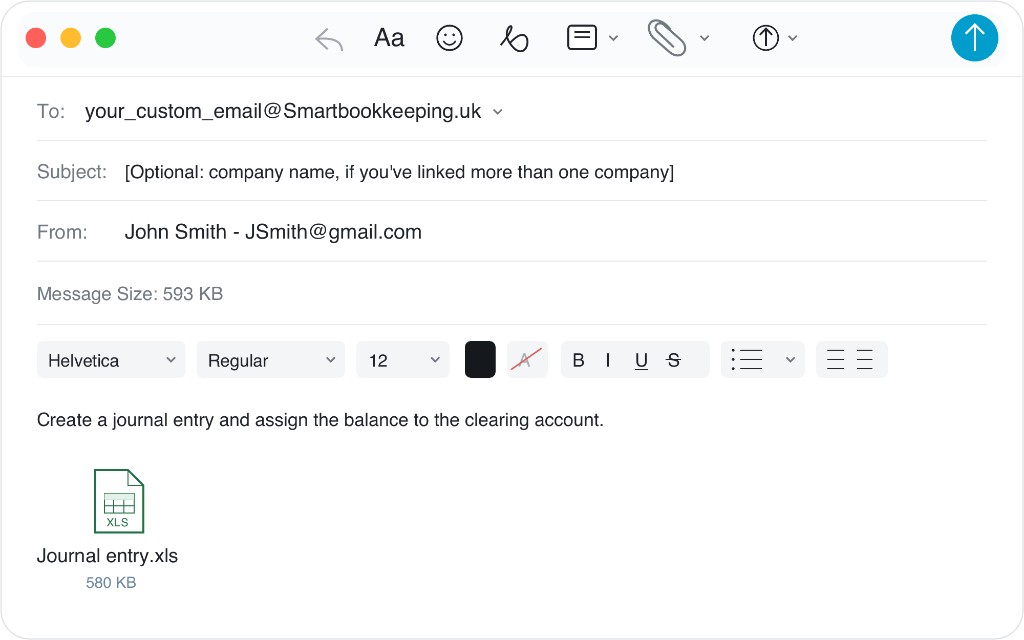
- Journal: if you want a manual journal instead of that default invoice, say so clearly (for example “make this a journal” or “create a journal entry”). You need a clearing account already set up in Xero (or name one in the email / save it as a rule) — the journal needs somewhere to assign the balancing amounts. Without that, your assistant cannot finish the draft.
- Split: “50% to Flat 1, 50% to Flat 2”.
- Recharge: use this when you paid a bill and want to charge someone else for it (or for their share). Attach the supplier document and name who to invoice. Your assistant creates a draft bill for you, plus draft sales invoices to those people. You can split by percentage across more than one person — for example “recharge 50% to Jane and 50% to Tom”.
- Invoice / bill / quote / credit from text: say create invoice, bill, quote or credit note and give the details. Quotes should be typed in the email — do not attach a quote PDF if you want a Xero Quote. Credit notes should also be typed in the email.
- One bill from several PDFs as evidence: the subject must say you want one bill and that the files are attached, for example:
Create a single bill and attach these PDFs. Put supplier and amount in the body.
What happens next
A draft in Xero with the original file attached when a file was processed. A confirmation email, often with a copy attached. A recharge creates a draft bill and draft invoices. Smart Bookkeeping aims to get you most of the way there — then you can make any small changes when you check the draft in Xero. Your bookkeeper can do that too.
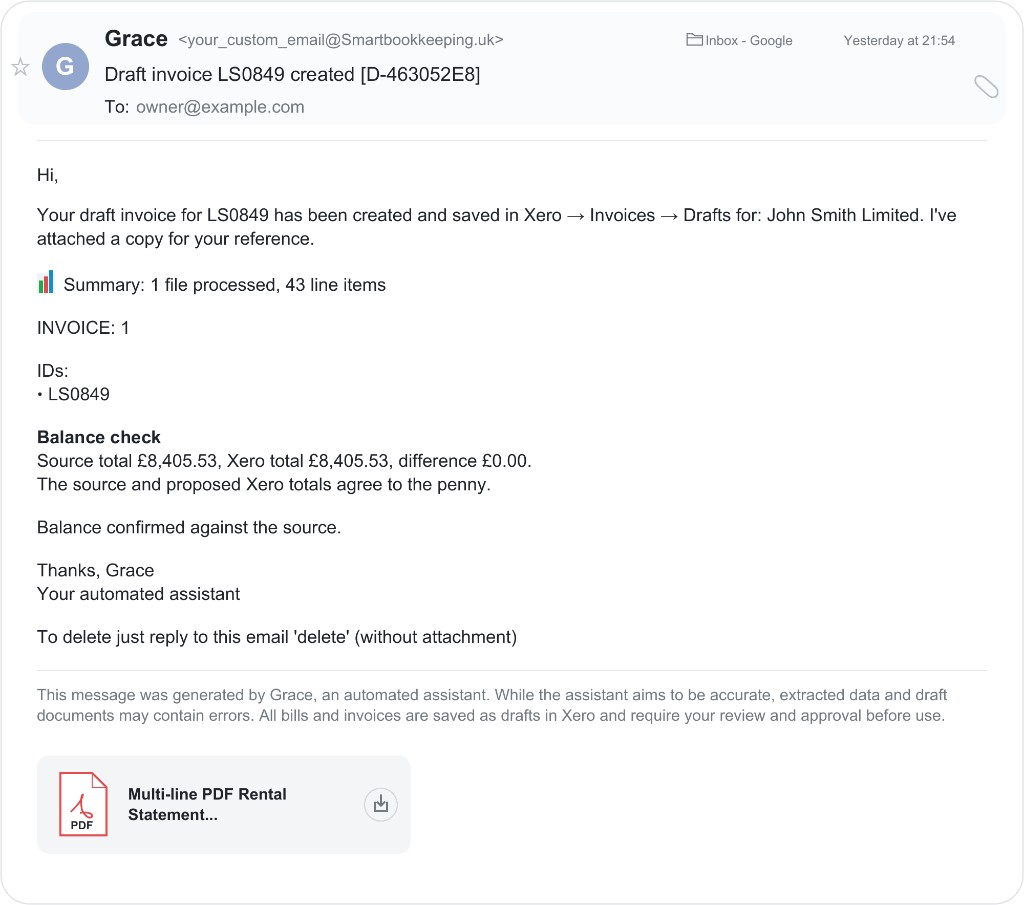
delete.Example — itemised receipt
Some receipts have many products (for example an IKEA shop for several properties). If you do not ask, your assistant creates one entry for the whole receipt. To file line by line, say so. You can also send named items to different tracking options or properties — but you must say where the other lines go too, or those will be left blank. For example: “Assign the Dyson hoover to Flat 1 and split everything else equally amongst the other flats.”
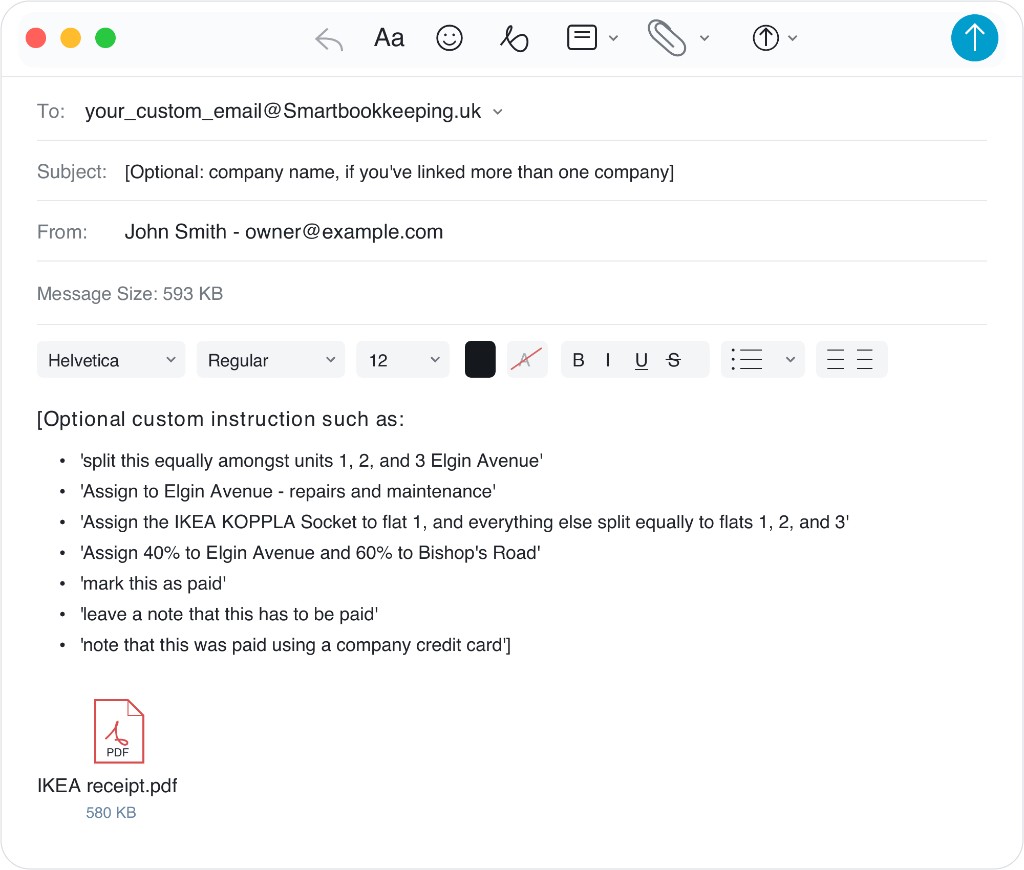
Example — recharge
Use this when you paid a bill and want to charge someone else for it (or for their share). Attach the supplier document and name who to invoice. Your assistant creates a draft bill for you, plus draft sales invoices to those people. You can split by percentage across more than one person — for example “recharge 50% to Jane and 50% to Tom”.
Example — journal entry
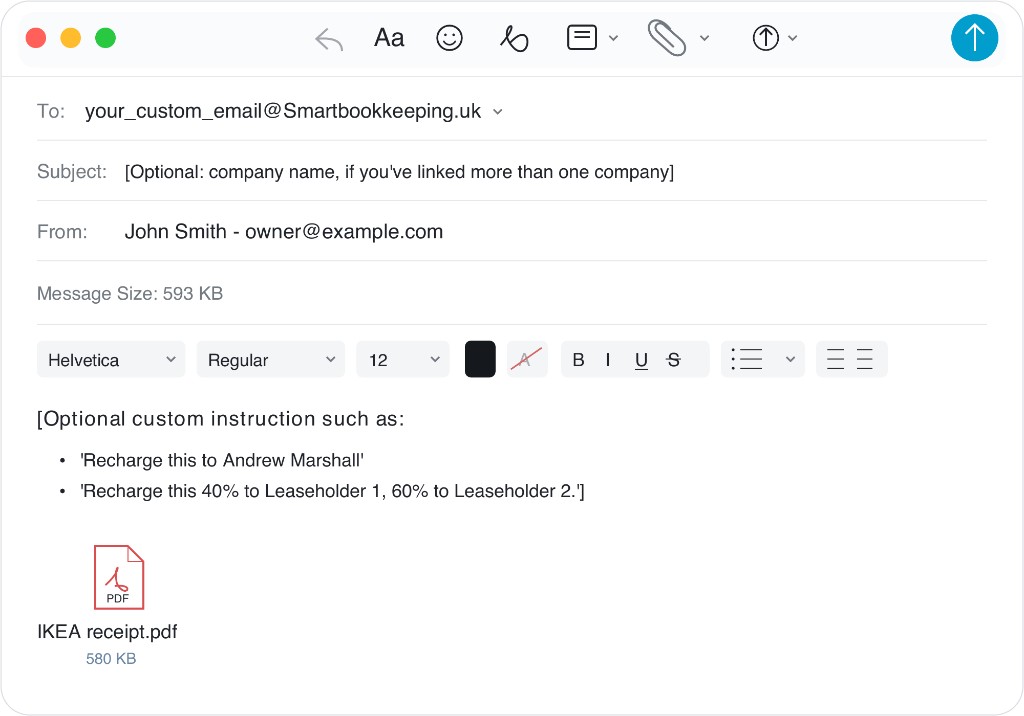
To create a manual journal in Xero, say clearly that you want a journal entry and attach the spreadsheet (or other file). You must already have a clearing account in Xero for this to work — the journal needs somewhere to assign the balancing amounts. Name that account in the email (for example “assign the balance to the clearing account”), or save it as a rule so your assistant knows next time. Without a clearing or balancing account, the draft cannot be completed.
If something goes wrong
Unreadable photo: resend a flatter, well-lit image.
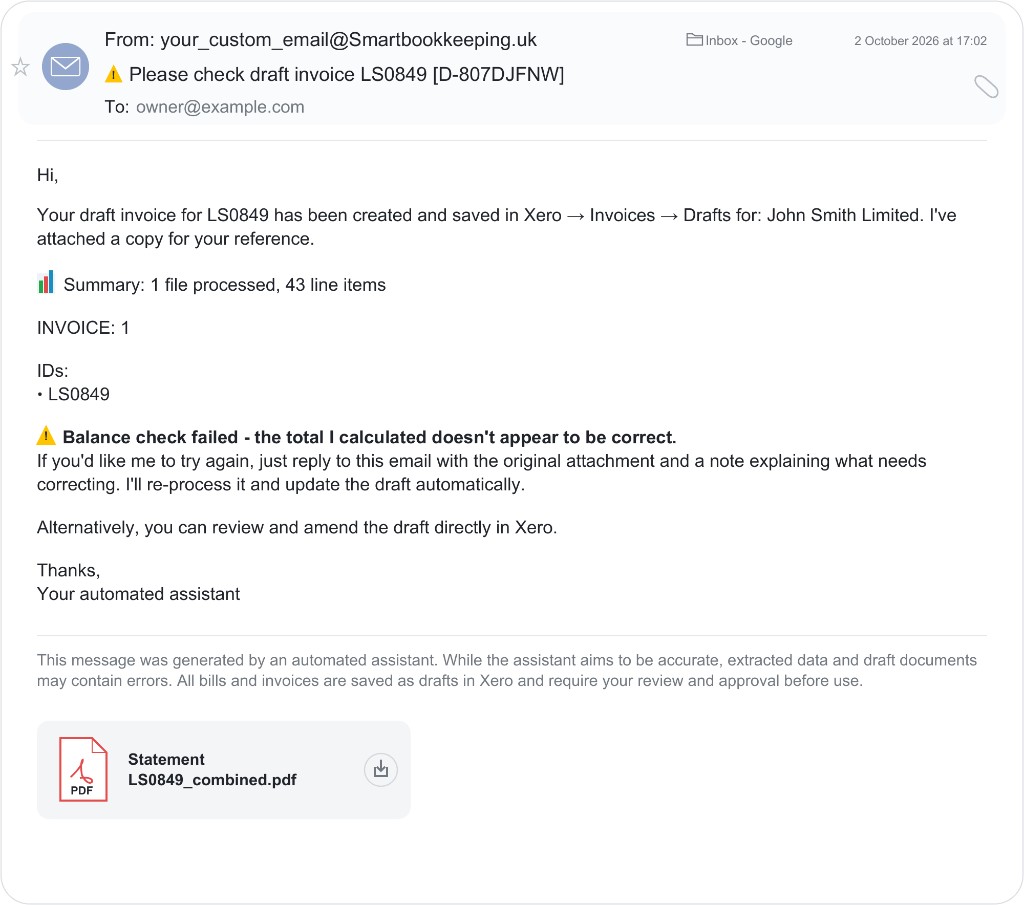
Smart Bookkeeping runs a balance check on what it extracted. Don’t worry if the totals don’t match — your draft is still created in Xero, with a balance warning so you can review it. You can reply to your AI with a correction, ask it to delete what it did, edit the draft in Xero, or resend the file with a note.