Why this matters
Without rules, your assistant will still process documents — but it stays average. Managing rules is what takes it from average to really good. You teach lasting preferences for future files: which account to use, how to map an agent’s codes to yours, how tracking names line up, and how to fix things it keeps miscategorising.
You can do this as you go. When you notice a mistake in Xero, email a rule so the next time is right. Rules can be listed, deleted and replaced — so don’t worry about making a mistake. Taking a little time on rules is how you get the AI extremely reliable. It is never perfect every time, but this is the main way to get it consistently accurate.
How to do it
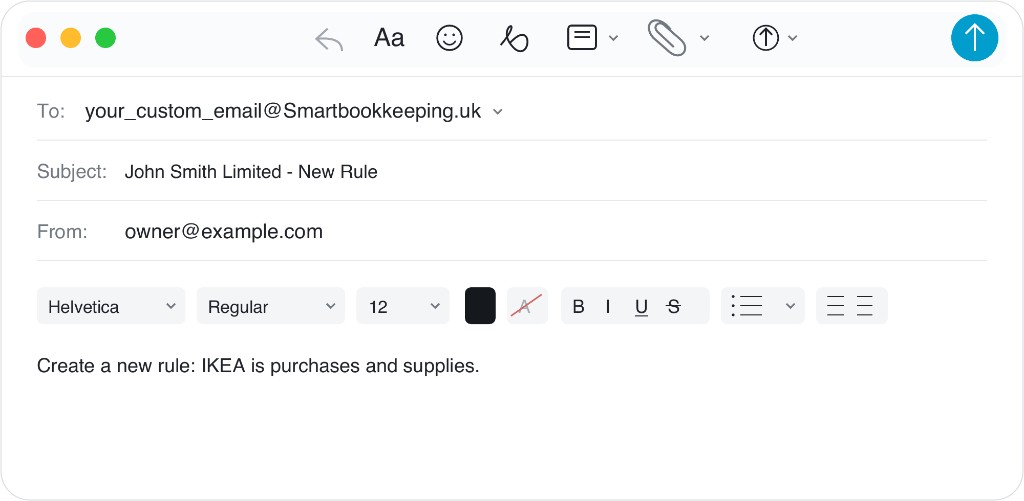
Email your assistant and ask her to make a new rule, or to remember something going forward. Use words such as create a rule, create new rule, new rule, remember…, or simply make clear you want a rule. Put the company in the subject if you have more than one. You do not need perfect chart-of-accounts wording — a name or a number is enough.
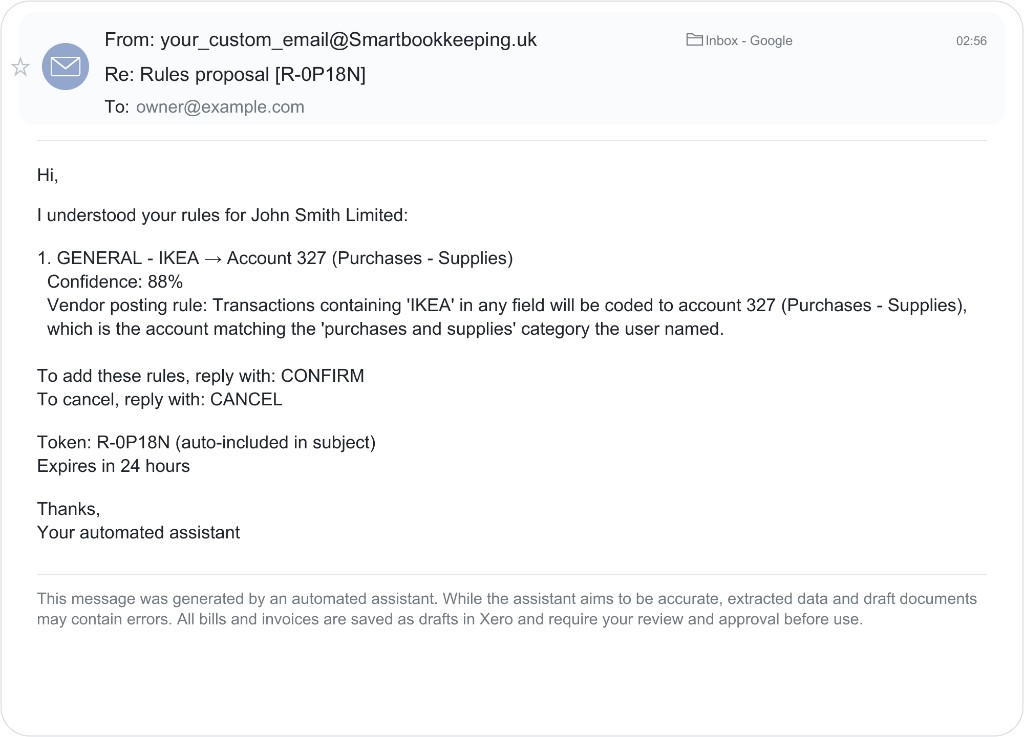
She replies with her interpretation (a rules proposal). If you are happy, reply CONFIRM. If it is wrong, reply CANCEL (or correct her and try again). Nothing is saved until CONFIRM. Proposals last 24 hours.
There are two kinds of saved rules:
- General rules (IDs like
G1,G2): apply when filing PDFs and Excel — tracking preferences, supplier/payee → account, description → account, and similar. - Excel rules (IDs like
E1,E2): apply to XLS / XLSX / CSV only. Very useful for agent statements in spreadsheet form — for example “make a new rule for XLS: account code 6100 means my Repairs & Maintenance 473.” Tell her it is an Excel / XLS rule when that is what you want.
A note sent with one file only is not a rule — it only changes that draft. For a lasting change you must ask for a rule.
Workflow — create a rule
CONFIRM if it is right, or CANCEL if it is not.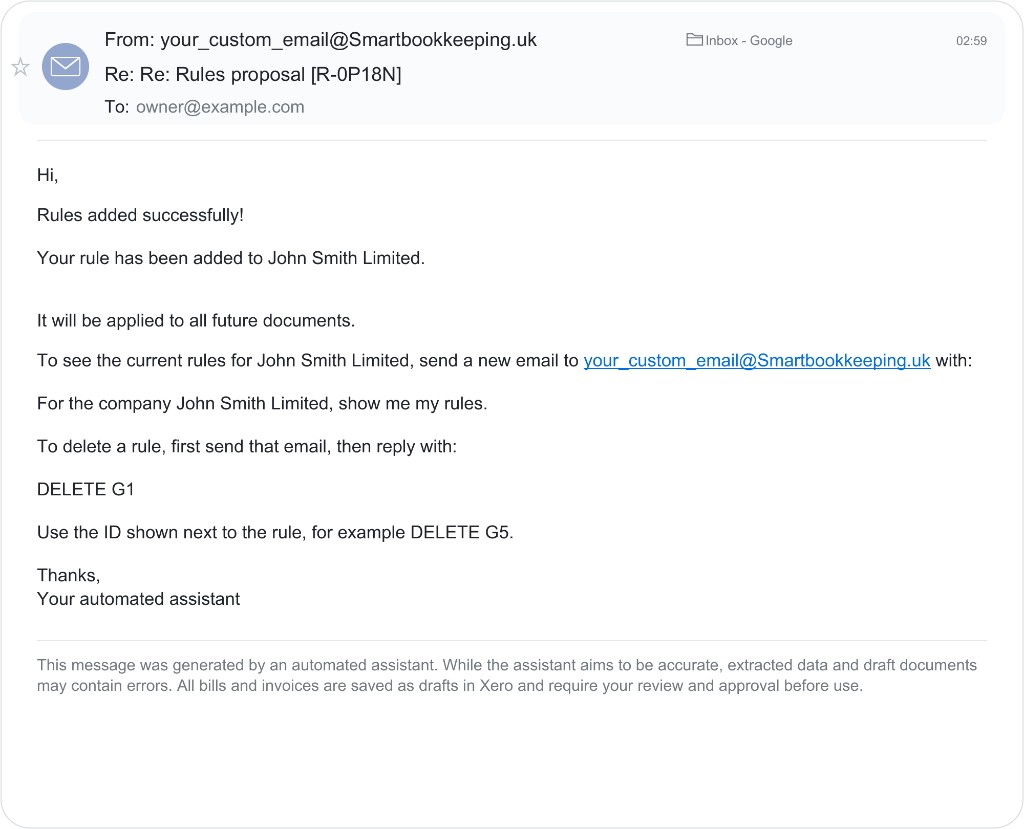
See what you have — list rules
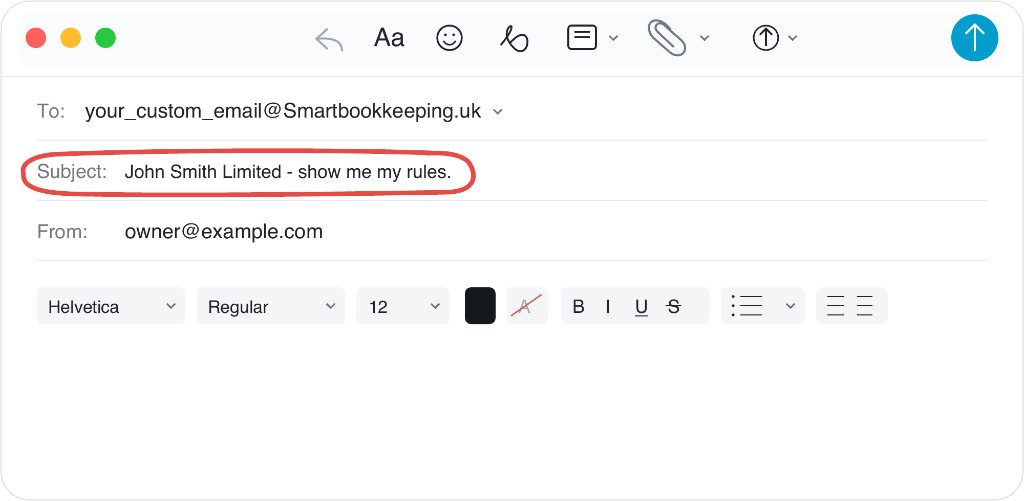
Email list rules, show me my rules, or what are the rules for Example Co Limited? (company name in the subject helps when you have more than one). She sends your saved list: General rules and Excel rules, each with an ID. That list is how you review and fine-tune — delete or disable by ID (for example DELETE G2).
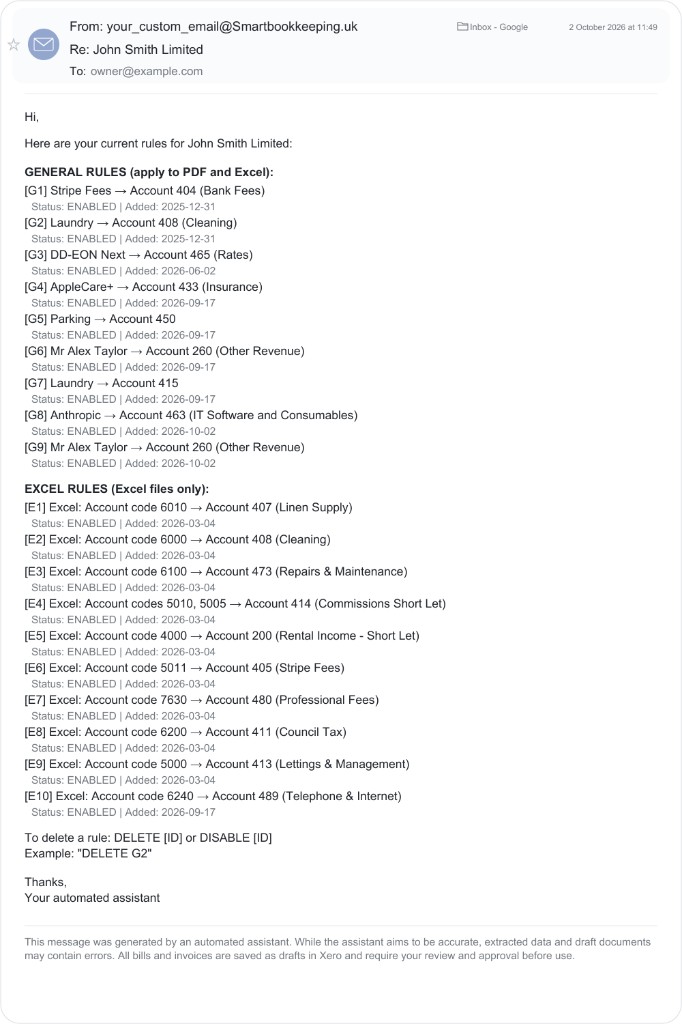
What you can teach her — example rules
Here are the kinds of rules people use. Mix and match in plain English:
- Agent chart → your chart: “When the agent’s statement shows account 440000 (repairs), use my repairs account 293.”
- Any foreign code → yours: “Account code 610 on the managing agent’s file means Repairs and Maintenance on my Xero.”
- Supplier / payee → account: “Bills from City Electrical always go to account 429.” / “Anthropic goes to account 463 (IT Software and Consumables).” / “Create a new rule: IKEA is purchases and supplies.”
- Description → account: “Stripe fees are bank fees.” / “Anything described as Stripe fee goes to Bank Fees.”
- Commission vs rent: “Direct Debit Booking.com is commission, not rental income.” / “Airbnb payout lines for host fees are commission.”
- Tracking synonyms: “For tracking, unit, room and flat mean the same thing.”
- Property / unit mapping: “On the agent’s statement, ‘Flat A’ means my tracking option 244 Harrow Road.”
- Contact / supplier name: “Treat ‘IKEA Ltd’ and ‘IKEA’ as the same supplier.”
- Rental statements as journals: “Rental statements should be journals; put the balance to the clearing account.”
- Spreadsheet columns: “On the monthly Excel, column B is the date, column E is the amount, column C is the description.”
- Excel account-code map (Excel rules): “New XLS rule: agent code 6010 → my account 407 Linen Supply.” / “Excel: 5010 and 5005 → Commissions Short Let.”
- Default tracking: “Unless I say otherwise, expenses for Example Co go to tracking option Building 1.”
- VAT / wording preferences: lasting coding habits you keep repeating in one-off emails — turn them into a rule so you do not have to say them every time.
If she keeps miscategorising something, do not only fix that one draft in Xero — create a rule (then CONFIRM) so the next statement or receipt is right automatically. Fill her up with rules over time; you can always delete one later.
What happens next
A proposal email with what she understood (often with a confidence %). After CONFIRM, future matching documents use the rule. You can stack many rules per company.
If you ask for something she already has, she flags a conflict instead of saving a duplicate — for example: “CONFLICT DETECTED: This rule duplicates existing rule #6 … No new rule needed.” New rules in the same email are still proposed normally so you can CONFIRM those.
If something goes wrong
A note on a single attachment is not a rule. To remove a saved rule, reply DELETE G1 (or DELETE E3 for an Excel rule) using the ID from the list. DISABLE also deletes the rule; it cannot be switched back on — write a new rule if you need it again. If the proposal is wrong, reply CANCEL and send a clearer instruction. A conflict notice means that preference is already saved — no action needed for that line.