Why / when to use this
Smart Bookkeeping is designed to understand natural language by email. Tell your AI what you want in the same words you would use with a person — there are no commands to memorise.
Use these requests after setup to add or remove a company or user, change VAT behaviour, create a missing account or tracking option, or pull a recent Xero change into Smart Bookkeeping.
For expired access, disconnecting or a wrong organisation, see Fix or change your Xero connection.
Manage settings by email
Write the request naturally and send it to your Smart Bookkeeping AI. She replies with what she understood and asks you to confirm before making sensitive changes.
The examples below show the kind of thing you can write. They are examples, not exact commands — use your own words.
If you have more than one company, put its name in the subject or in your instruction. If you only have one, you can leave the company name out.
Automatic refresh: saved Xero accounts and tracking older than 24 hours refresh in the background. If you need a change immediately, use the refresh example below.
| What you want | Example email to your AI | What happens |
|---|---|---|
| Refresh accounts & tracking now | “Refresh the chart of accounts and tracking for Example Property Ltd.” | She pulls both lists from Xero immediately and confirms how many were updated. |
| Add another company | “I’d like to add another company.” | She emails a signup link. Finish in the browser and carefully select the right Xero organisation. |
| Remove one company | “Remove Example Property Ltd from my Smart Bookkeeping account. Do not cancel my subscription.” | The named company is removed from Smart Bookkeeping; the subscription and other companies stay. Disconnect Xero separately for a clean break. |
| Change VAT treatment | “Set Example Property Ltd to VAT registered.” | She asks you to confirm. This changes how Smart Bookkeeping enters drafts; it does not change VAT registration in Xero. |
| Create a chart-of-accounts code | “Create a new chart-of-accounts code for cleaning supplies for Example Property Ltd.” | She proposes the Xero account type, code, name and tax with a short reason. Reply CONFIRM, CANCEL, or correct her. |
| Add a tracking option | “Add Unit 10 under my Property tracking category for Example Property Ltd.” | She emails your current tracking structure, proposes the option, and waits for CONFIRM before changing Xero. |
| See the chart of accounts | “Email me the chart of accounts for Example Property Ltd.” | She replies with the current chart of accounts as a PDF. |
| Add a user | “Add alex@example.com as a member for all companies.” | Owners can add or remove users. She explains the change and waits for CONFIRM. |
| Reconnect Xero | “Reconnect Example Property Ltd to Xero.” | She emails a secure one-hour link for reconnecting that same organisation. |
Optional backup — Owner Console
Email remains the main way to control your AI. If you prefer to click, want an account overview, or want a shortcut to common actions, owners can use the Owner Console as an optional backup. It is not used to file documents; filing remains email → draft in Xero.
Owners can use it to:
- View and switch between every connected company and see its Xero connection status.
- See the current plan, monthly credit usage and purchased-credit balance; manage the plan or buy 20, 40 or 80 credits securely through Stripe.
- See VAT status, chart-of-accounts count and tracking options for the selected company.
- See users and whether they are an owner or member.
- Reconnect or disconnect Xero, and add another company.
- Start common account-management requests; several buttons compose the same email you could send your assistant directly.
How to open it: go to the Owner Console login, enter the owner email used for Smart Bookkeeping, and choose Email me a dashboard link. We’ll send a secure magic link to that inbox. Open the email titled “Open your Smart Bookkeeping dashboard” and choose Open your dashboard within 24 hours. If it does not arrive, check your Spam or Junk folder, then request a new link.
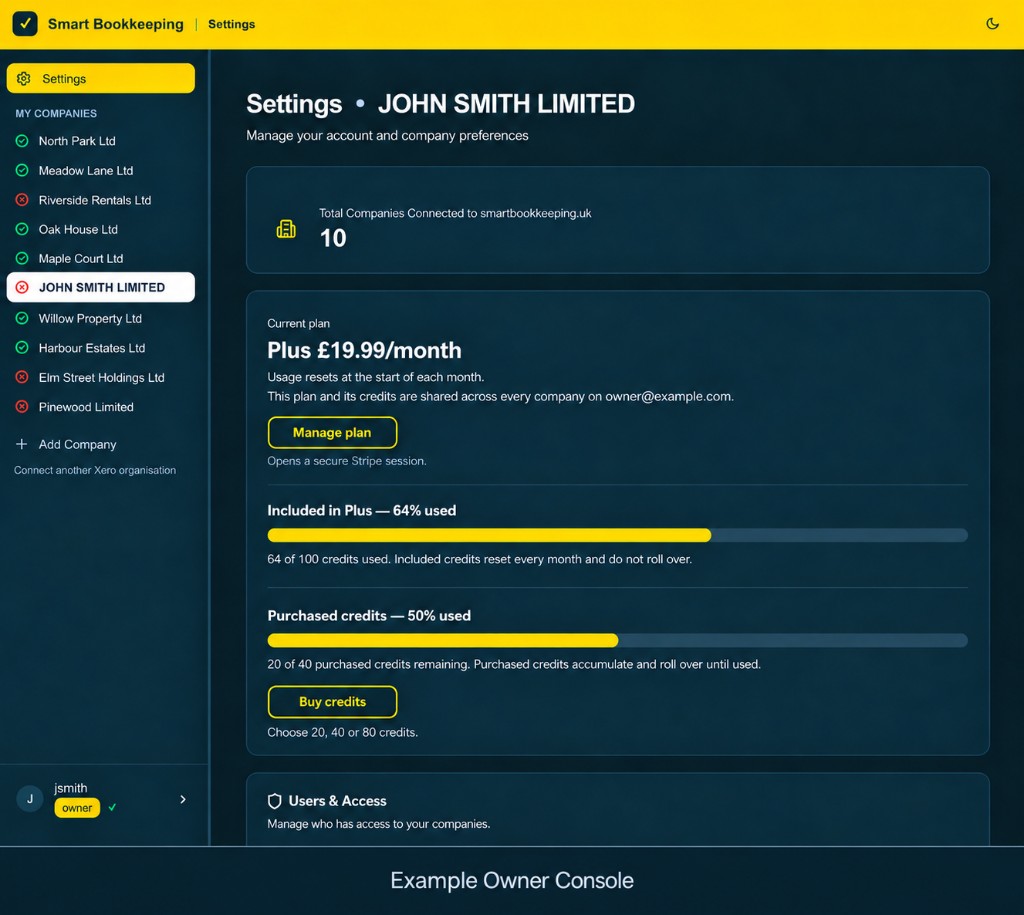
Owners only: members can email documents but cannot open the Console. If another trusted person needs Console access, an existing owner can email: Add person@example.com as an owner. Confirm the proposal, then that new owner requests their own login link. Owner access includes all dashboard and user-management privileges.
Workflow — new chart-of-accounts code
Use this when a category is missing from your Xero chart of accounts and you are not sure whether the new code should be an Expense, Overhead, or another Xero account type. You do not need to choose the code yourself. Just describe what it is for — for example: “I need a new chart-of-accounts code for supplies,” “general purchases,” or “toilet paper and cleaning things for the properties.” She checks your existing chart, suggests the Xero account type, an unused code, a name and tax, explains why, then creates the new chart-of-accounts entry only after you CONFIRM.
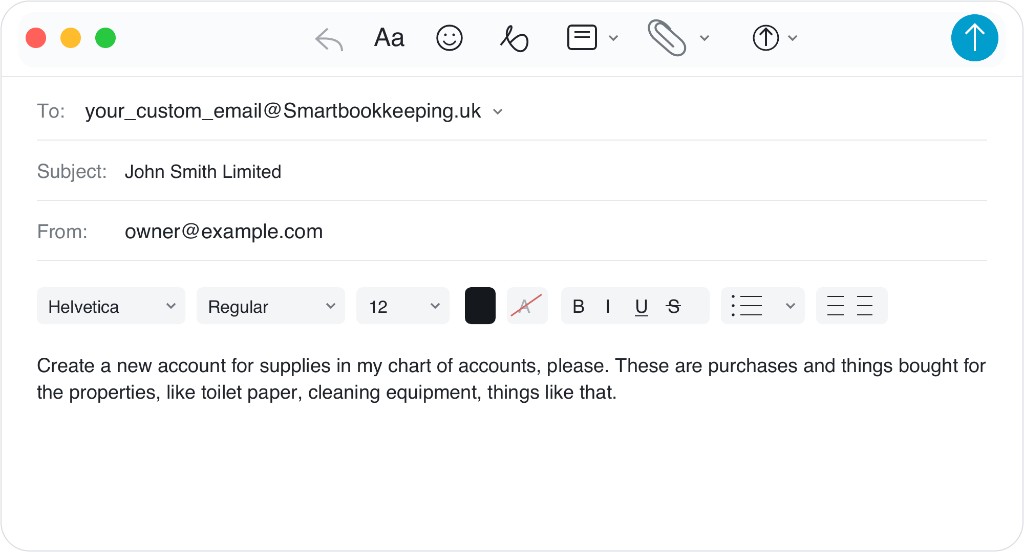
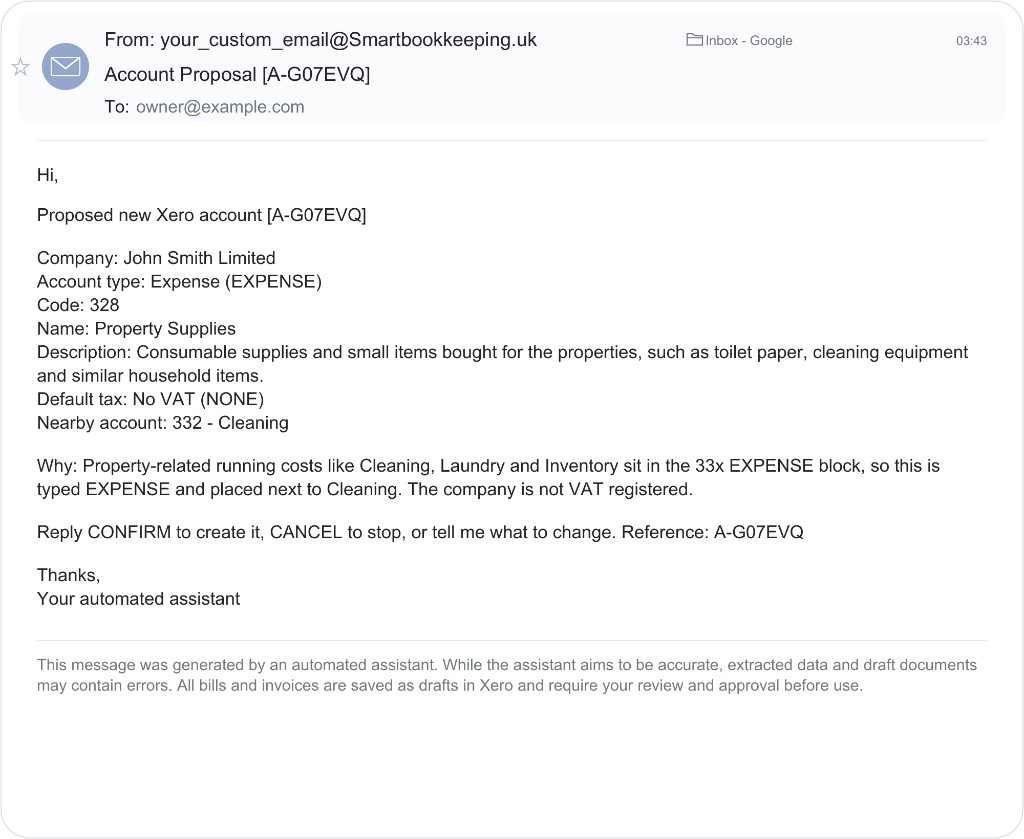
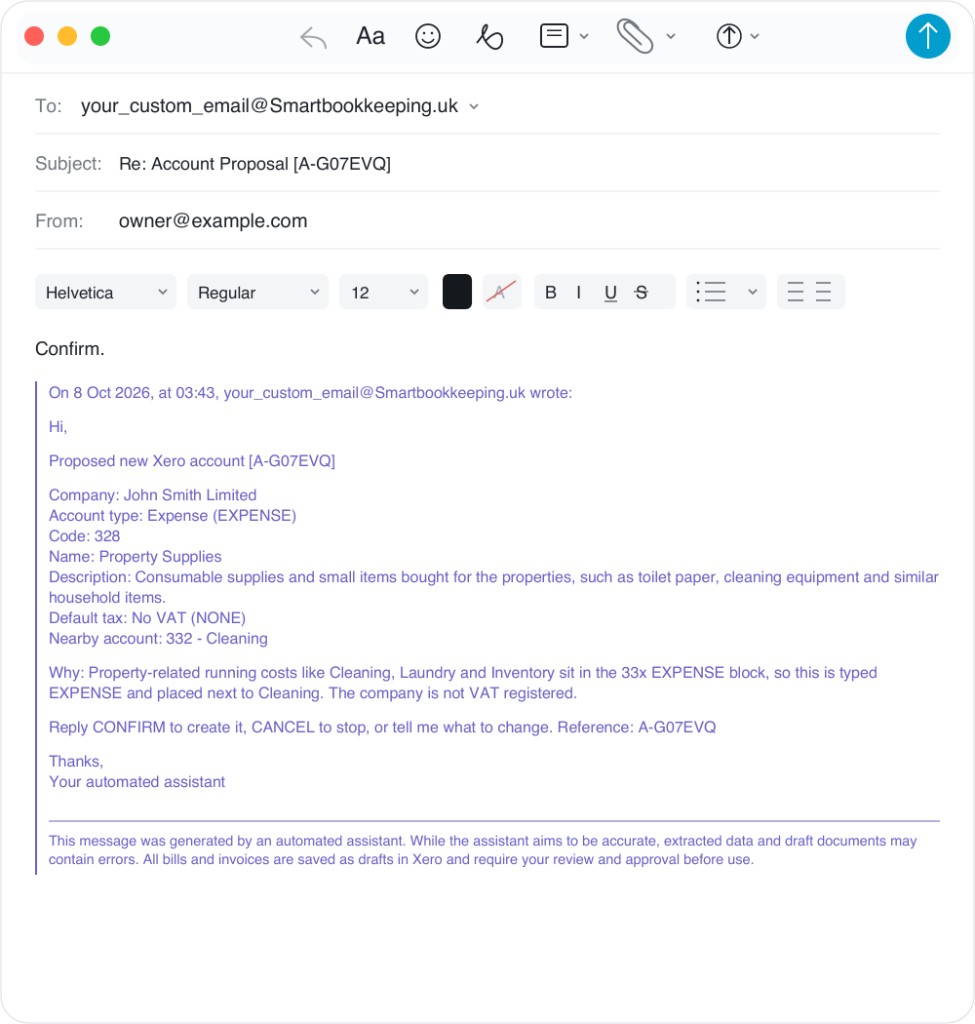
CONFIRM if it is right, or CANCEL / correct her if not.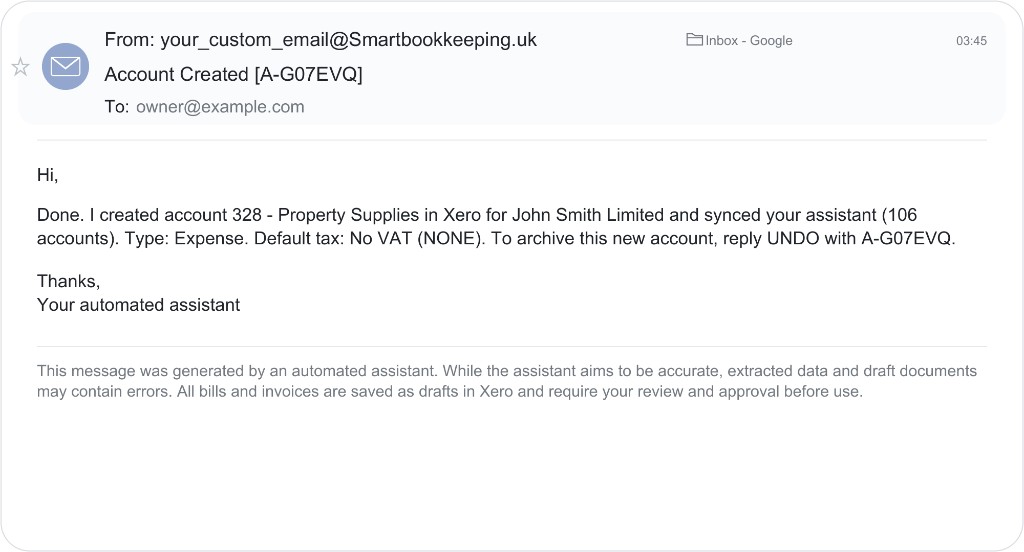
UNDO with the reference if you need to archive it.What happens next
A short confirmation when something is done; a proposal plus CONFIRM or CANCEL when she needs your say-so (VAT, new accounts, tracking options, users). For tracking, expect a PDF of your current headings/options with the proposal before anything changes in Xero. An immediate sync reply says how many accounts and tracking categories were updated. Adding a company sends a link to finish in the browser.
If something goes wrong
If Xero access has expired, email reconnect to xero or use Reconnect in the Owner Console. Reconnect renews the same organisation and keeps its rules and settings. For disconnecting or correcting a wrong organisation, use Fix or change your Xero connection.