Why this matters
You do not need a special upload page or accounting command. Start with one ordinary email and one file.
How to do it
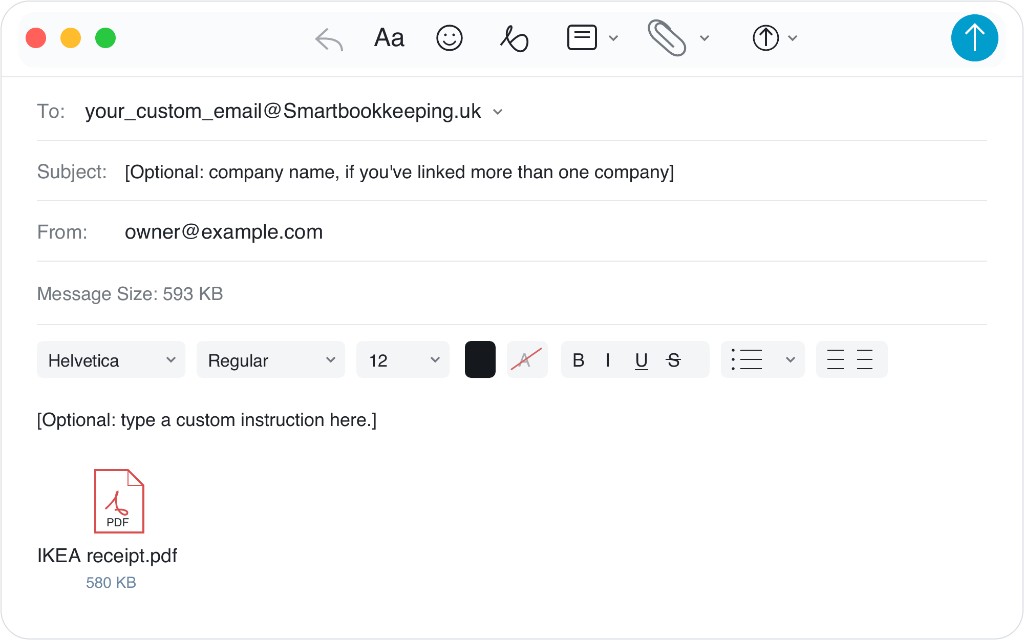
- Email the personalised assistant address shown when setup finished.
- Attach a PDF, photo or spreadsheet. For an ordinary receipt or a supplier invoice (a bill to you), no message is required.
- If you created a sales invoice outside Xero (for example in Excel, Word or another template) and want it entered as a sales invoice in Xero, attach it and say “create an invoice”. Otherwise it will make a bill, because it assumes the invoice is to you.
- One company connected: you can omit its name.
- Several companies connected: put the organisation name in the subject or first line.
- Send from an authorised email address.
What happens next
Your assistant reads the file using that company’s accounts, tracking, VAT choice and saved rules. She creates a draft in Xero, attaches the original document and replies with what she did. You or your bookkeeper review and approve it in Xero.
Example
If something goes wrong
Made a mistake? See Fix or undo a mistake. No draft appeared? See When processing stops. Wrong organisation? See Fix or change your Xero connection.
Next
Once the first file works, see Process files & use advanced instructions for itemisation, journals, splits, recharges and one-off overrides.